

GitHub integration Pro
GitHub integration with Plane allows seamless synchronization between your GitHub repositories and Plane projects. By linking the two, your issues and pull requests stay updated across both platforms. Issues, comments, labels, and assignees reflect changes from either system. Pull request events automatically move work items through your Plane workflow.
Plane supports integration with:
GitHub Cloud (github.com)
The standard GitHub service, available at github.com. Covers all plansGitHub Enterprise Cloud (ghe.com)
GitHub's managed enterprise service where your organization gets a dedicated subdomainGitHub Enterprise Server (self-hosted)
A self-hosted GitHub instance deployed on your own infrastructure
TIP
GitHub Cloud has its own integration page in Plane's settings. GitHub Enterprise Cloud (GHE.com) and GitHub Enterprise Server share the same page - a toggle at the top of the configuration form switches between the two.
What the integration does
Issue syncing
A GitHub issue with the plane label syncs to a linked Plane project as a work item. A Plane work item with the github label syncs to the linked GitHub repository as an issue. Changes to title, description, state, assignees, and labels in one system update the other. A comment with a cross-link is automatically added to each issue.
Comment syncing
Comments on a GitHub issue sync to the corresponding Plane work item, and vice versa when bidirectional sync is enabled.
PR state automation
When a pull request is opened, sent for review, merged, or closed, Plane moves the linked work item to the state you've mapped to that event.
User attribution
When a team member connects their personal GitHub account and is added to the user map, updates they make in one system appear attributed to them in the other - not posted by the integration bot.
Prerequisites
- Your Plane account must have Admin or Owner role in the workspace.
- One GitHub organization can be connected to one Plane workspace. If an organization is already connected to another workspace anywhere in Plane, the connection attempt fails with an error.
- The
planelabel on a GitHub issue and thegithublabel on a Plane work item are what trigger syncing. Create these labels on both platforms.
Set up GitHub integration
To get started, you'll need to connect your GitHub account, organization, and repositories with Plane. Follow the steps below to complete the setup:
Connect GitHub organization
Link your GitHub organization to your Plane workspace to start syncing repositories.
Plane self-hosted instances
If you're running a self-hosted instance of Plane, you'll need to first create and configure a GitHub App to get GitHub integration working. Follow this setup guide first before diving into the steps on this page.
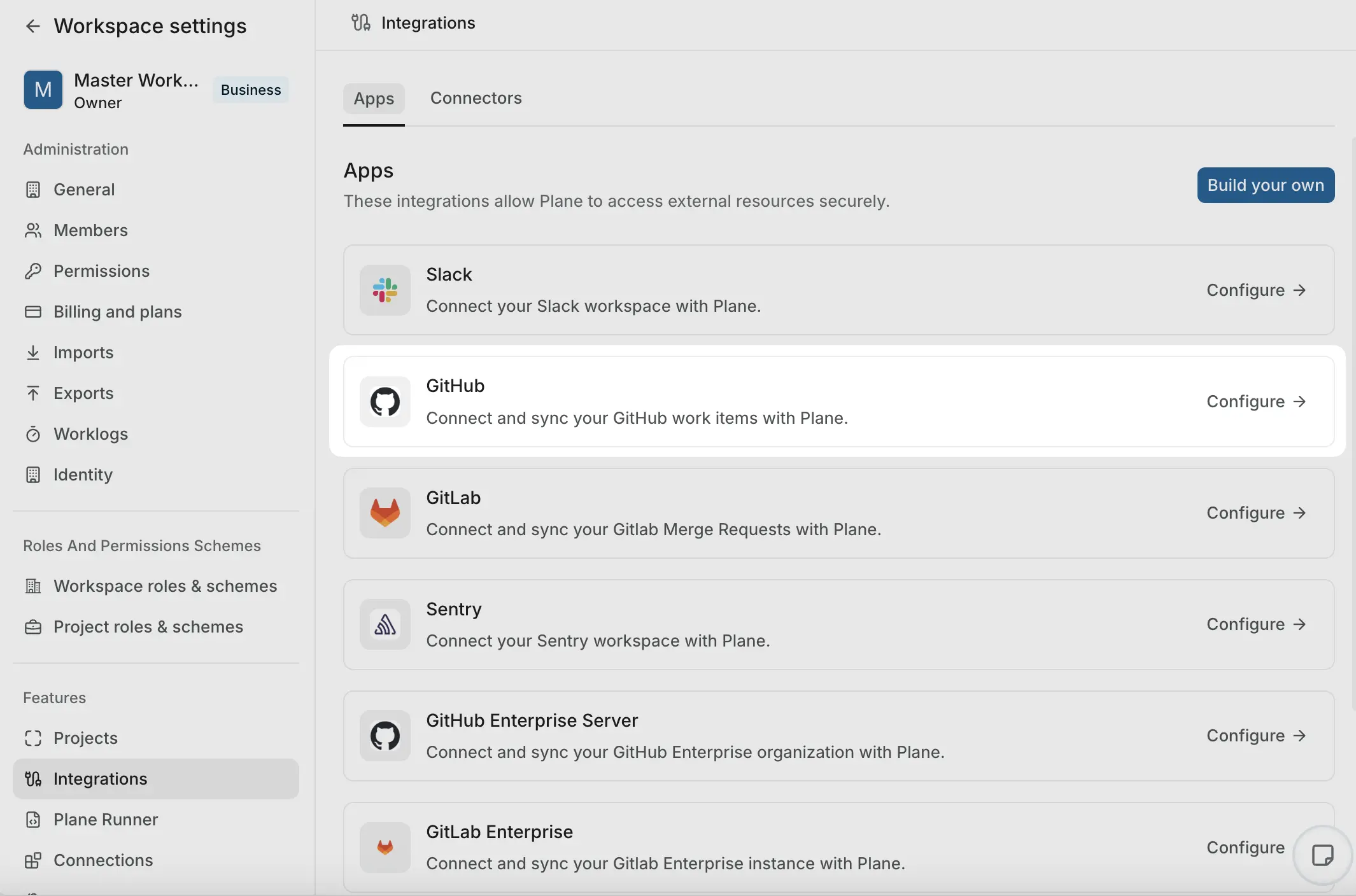
- Go to Settings → Integrations → GitHub in your Plane workspace.
- Click Connect.
- You are redirected to github.com. Select the organization or personal account where you want to install the Plane app.
- Select whether you want to sync all repositories or pick specific ones.
- Click Install to finalize the connection.
- After authorization, you'll be redirected back to Plane, where your GitHub organization will appear as connected.
The integration page shows the connected organization name and avatar. Plane has stored the GitHub App installation ID and fetched your organization's details.
Connect personal GitHub account
Connecting a personal account lets Plane attribute your actions in GitHub to your Plane identity, and vice versa. This is optional. If you do not connect, your actions in one system appear as the integration bot in the other.
When this connection is enabled, comments made in Plane will appear in GitHub under your GitHub user account, else comments will be posted as Plane GitHub App or your custom GitHub app name.
Workspace admins can connect their personal GitHub accounts from the GitHub configuration page.
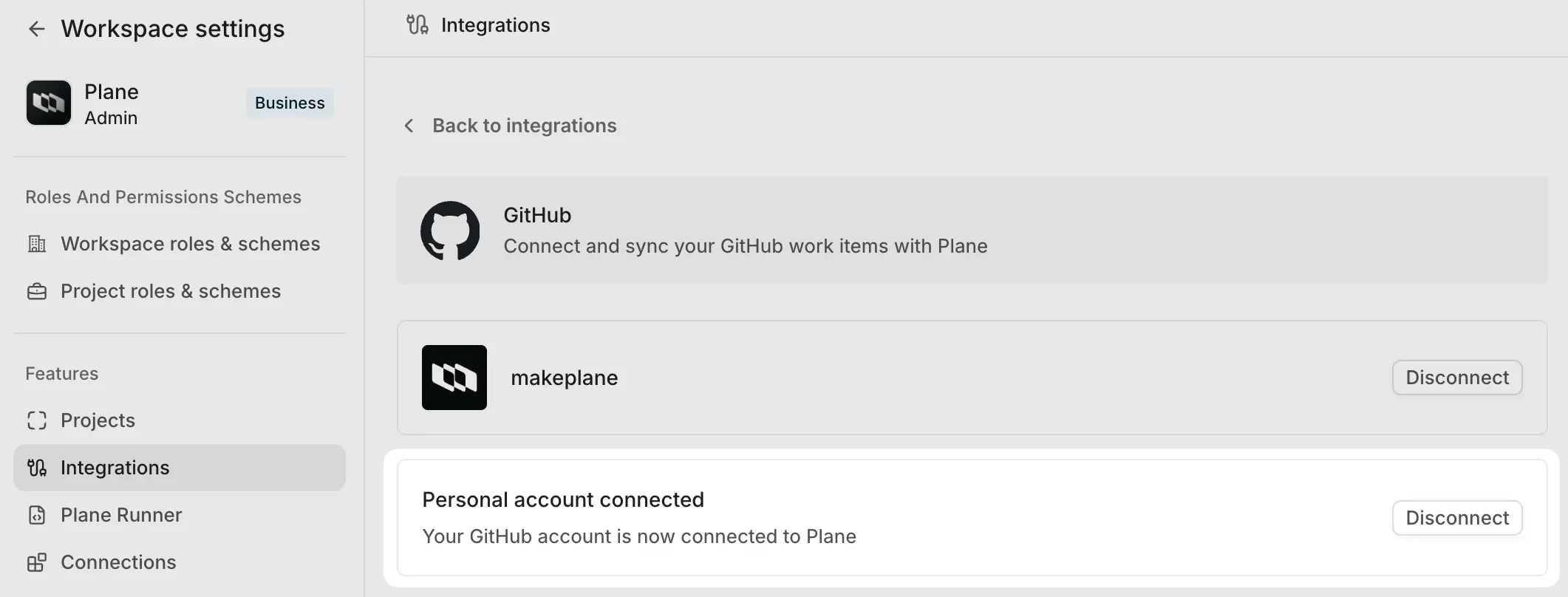
- In the Connect personal account section under Integrations, click Connect.
- Review the required permissions GitHub requests and authorize.
- After granting permissions, you’ll see the status updated to show that your personal account is connected.
INFO
Only one Workspace Admin can connect their GitHub account via Workspace Settings. Others can connect their accounts through Profile Settings.
All other workspace members can connect their personal GitHub accounts from the Connections page in Workspace settings.
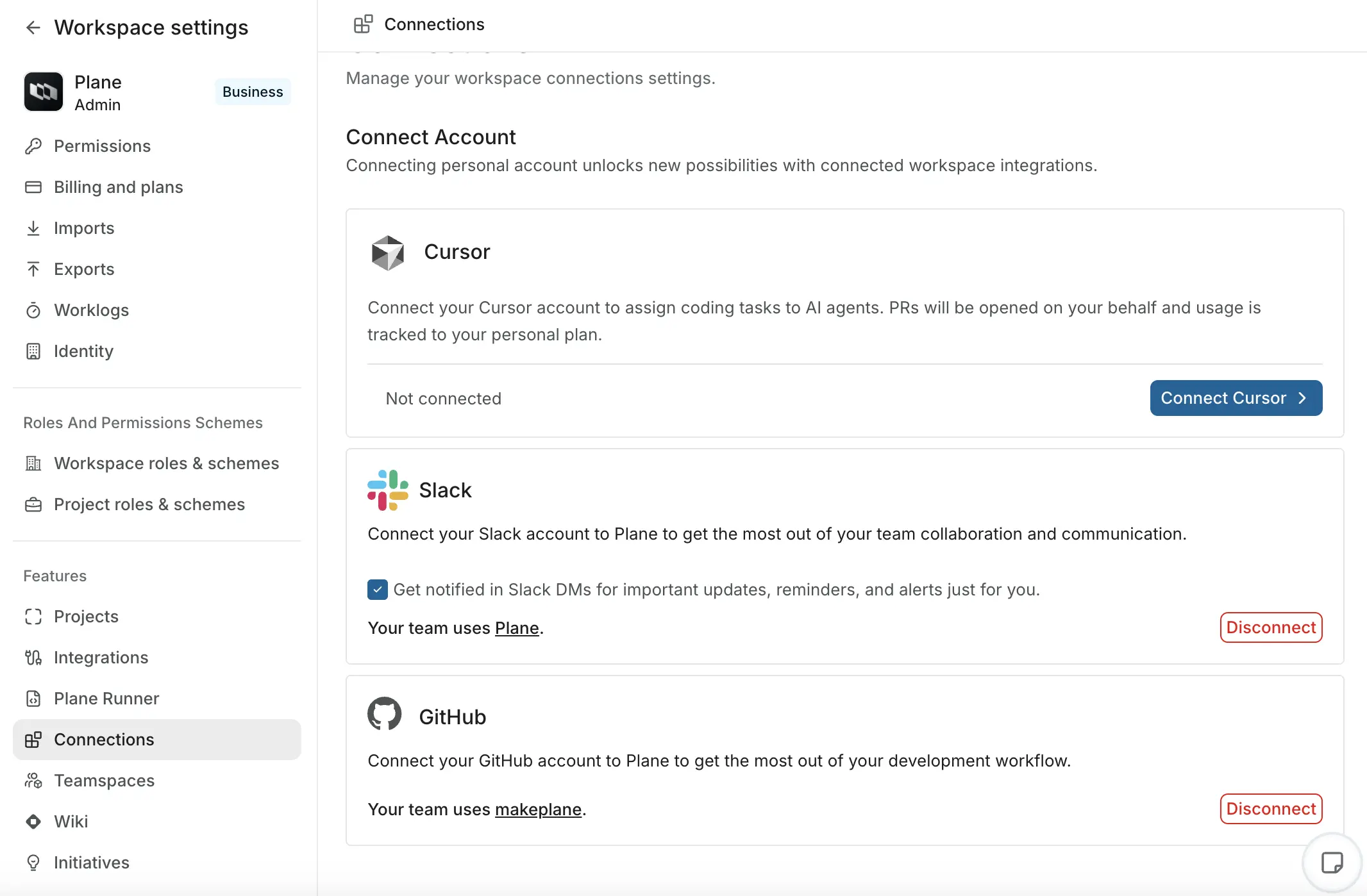
- Go to Workspace Settings.
- Select the Connections tab in the sidebar.
- Click Connect in the GitHub section, which will redirect you to GitHub for authentication.
INFO
If your workspace doesn’t have GitHub integration enabled, you won’t be able to connect your personal account. In this case, contact your Workspace Admin.
- Once connected, your GitHub account will be listed in Plane.
Sync issues
With the GitHub integration set up, you can sync issues between Plane and GitHub at the project level. This ensures GitHub issues and Plane work items stay synchronized within your configured repositories and projects.
Add project work item sync
Once GitHub is connected to Plane, workspace admins can link GitHub repositories with Plane projects.
Navigate to the Project Issue Sync section under Integrations.
Click the (+) button to create a new sync mapping.
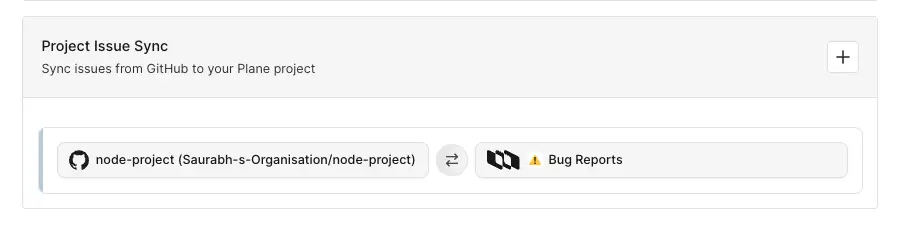
In the modal that appears, configure the following:
Plane project
Select the Plane project you want to sync with.GitHub repository
Choose the GitHub repository to connect.Project issue sync
Map GitHub issue states to Plane states:- Issue Open → Select a Plane state (e.g., Todo)
- Issue Closed → Select a Plane state (e.g., Done)
Select issue sync direction
Choose how issues should sync:- Unidirectional → Sync issues from GitHub to Plane only.
WARNING
This will overwrite Plane work item content with GitHub issue data.
- Bidirectional → Sync issues both ways between GitHub and Plane.
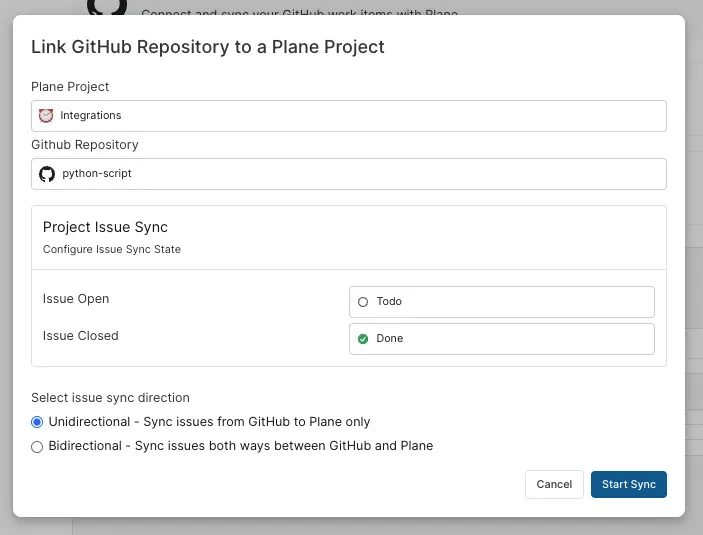
- Unidirectional → Sync issues from GitHub to Plane only.
Click Start Sync.
All configured project issue syncs will appear in a list where you can edit or remove them as needed.
Sync issues to Plane
After configuring project work item sync, you can link existing GitHub issues into your Plane project.
GitHub → Plane
- In your GitHub repository, add the
planelabel to any issue you want to sync. - The issue will automatically be created as a work item in the linked Plane project.
- Plane posts a comment on the GitHub issue with a link to the newly created work item, confirming the connection.
- The work item in Plane will include a link back to the original GitHub issue.
Sync work items to GitHub
If you have existing work items in Plane that you want to sync to GitHub, you can do so using labels.
Plane → GitHub
- In your Plane project, add the
gitHublabel to any work item you want to sync. - A new issue will automatically be created in the linked GitHub repository.
- The GitHub issue will be linked back to the Plane work item.
- Future updates will sync according to your configured sync direction (unidirectional or bidirectional).
How issue syncing works
State synchronization
- When a GitHub issue is opened or closed, the corresponding Plane work item automatically moves to the mapped state.
- With bidirectional sync enabled, state changes in Plane work items will also update the GitHub issue status (open/closed).
Creating synced issues
- Issues created in GitHub (within a synced repository) are automatically created in the linked Plane project.
- With bidirectional sync enabled, work items created in Plane (with the sync configured) are also created in GitHub.
Continuous updates
- All synced properties (title, description, assignees, labels, comments, etc.) update automatically based on your sync direction settings.
- See What gets synced? for detailed information on property-level sync behavior
What gets synced?
important
In unidirectional sync mode (GitHub → Plane only), data from GitHub issues will overwrite corresponding data in Plane. Changes made in Plane will not sync back to GitHub unless you enable Bidirectional sync in your integration settings.
Here’s what syncs automatically between Plane and GitHub:
| Property | Sync direction | Notes |
|---|---|---|
| Title | Both ways | Updates in either platform reflect in the other. |
| Description | Both ways | Content remains consistent between Plane and GitHub. |
| Assignees | Both ways | Assigned users are mapped based on the initial setup. If a user isn’t mapped, the assignee field may be left empty. |
| Labels | Both ways | If a Label doesn’t exist in Plane, it will be created (and vice versa). |
| States | Both ways | Updates in either platform reflect in the other. |
| Comments | Both ways | Comments sync between platforms with source attribution. If the commenter isn’t mapped to a Plane user, the comment appears as posted by the GitHub Bot. See Connect personal GitHub account for more info. |
| Mentions | Both ways | Mentioned users sync if they are mapped; otherwise, a GitHub profile link is included. |
| Issue links | GitHub → Plane | Any issue references in GitHub descriptions or comments will be displayed in Plane with a direct link to the issue including the repository name and owner. |
Configure PR state automation
Pull requests (PRs) are also synchronized with Plane to ensure work item tracking remains accurate throughout the development lifecycle.
Add pull request mapping
Once GitHub is connected to Plane, workspace admins can configure pull request state mapping for Plane projects. This ensures PR states automatically sync with work item states in the mapped project.
Navigate to the Pull request state mapping section.
Click the (+) button to create a new mapping.
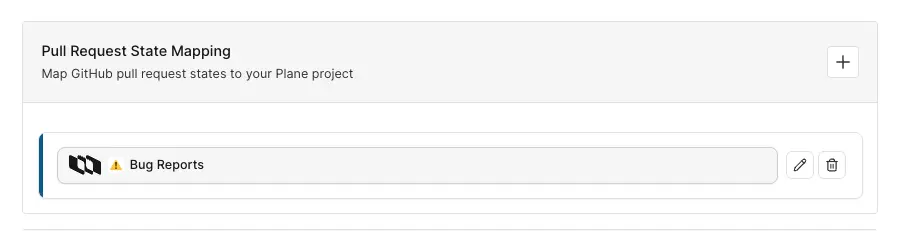
In the modal that appears, configure the following:
- Plane project
Select the Plane project where PR state automation should be enabled. - Pull request automation Map GitHub pull request states to Plane work item states
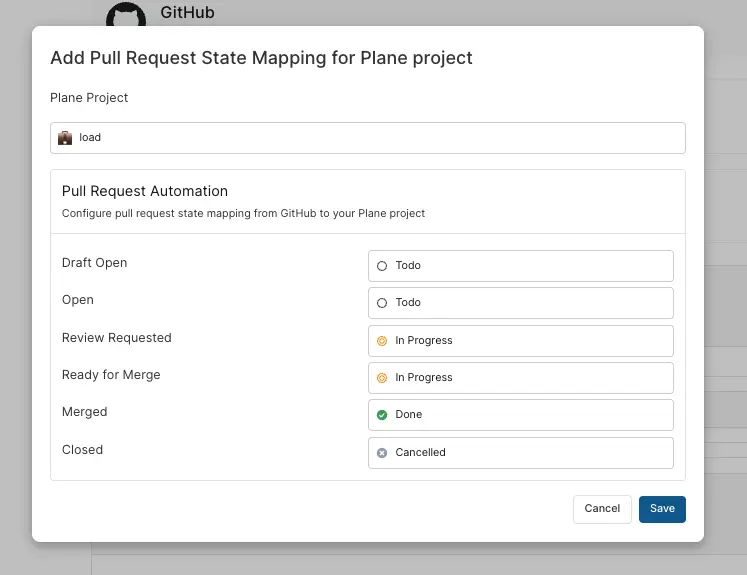
- Plane project
Click Save.
All configured pull request state mappings will appear in a list where you can edit or remove them as needed.
Set up PR automation
To automate pull request state changes with Plane work items:
- Configure PR state mapping for your Plane project to enable PR state automation. See Add pull request mapping.
- Reference Plane work items in your GitHub PR title or description using the appropriate format. See Reference formats below.
- Automatic state updates will move the work item state in Plane based on the GitHub PR state defined in your mapping.
Reference formats
There are two ways to reference Plane work items in your GitHub PRs:
With brackets [WEB-344] - State automation
- Links the work item to the PR
- Adds a comment from Plane App showing linked work items
- Automatically updates the work item state based on PR state changes (as configured in your PR state mapping)
Without brackets WEB-344 - Link only
- Links the work item to the PR as a reference
- Adds a comment from Plane App showing referenced work items
- Does not trigger automatic state updates
Example
PR Title: [WEB-344] Add user authentication feature
PR Description: Implements login functionality for WEB-345
In this example:
- WEB-344 will be fully automated (state changes with PR state)
- WEB-345 will be linked as a reference only (no state automation)
PR lifecycle mapping
The lifecycle of a pull request can be mapped to workflow states in Plane. The following PR states are available for mapping:
- A draft PR is created.
- A PR is opened.
- A review is requested.
- The PR is approved and ready to be merged.
- The PR is successfully merged.
- The PR is closed without merging.
Work item backlinks in pull requests
When a PR references Plane work items, Plane will post a confirmation comment on the pull request, ensuring visibility into which issues are linked.
With GitHub integration, Plane makes managing your issues and pull requests across both platforms easy and efficient. Whether you’re tracking progress, syncing updates, or managing workflows, you’ll always have a clear view of your project’s status.